App Preview
Record, Save, Share
A narrated single-take walkthrough: menubar launch, region select, capture, and share — all in 22 seconds.
Claude, Cursor & MCP
A split-pane demo of QuikGIF's built-in MCP server driving recordings from an AI assistant.
The full trailer
An eight-scene product trailer set to music — every surface, every capture mode, in 29 seconds.
Getting Started
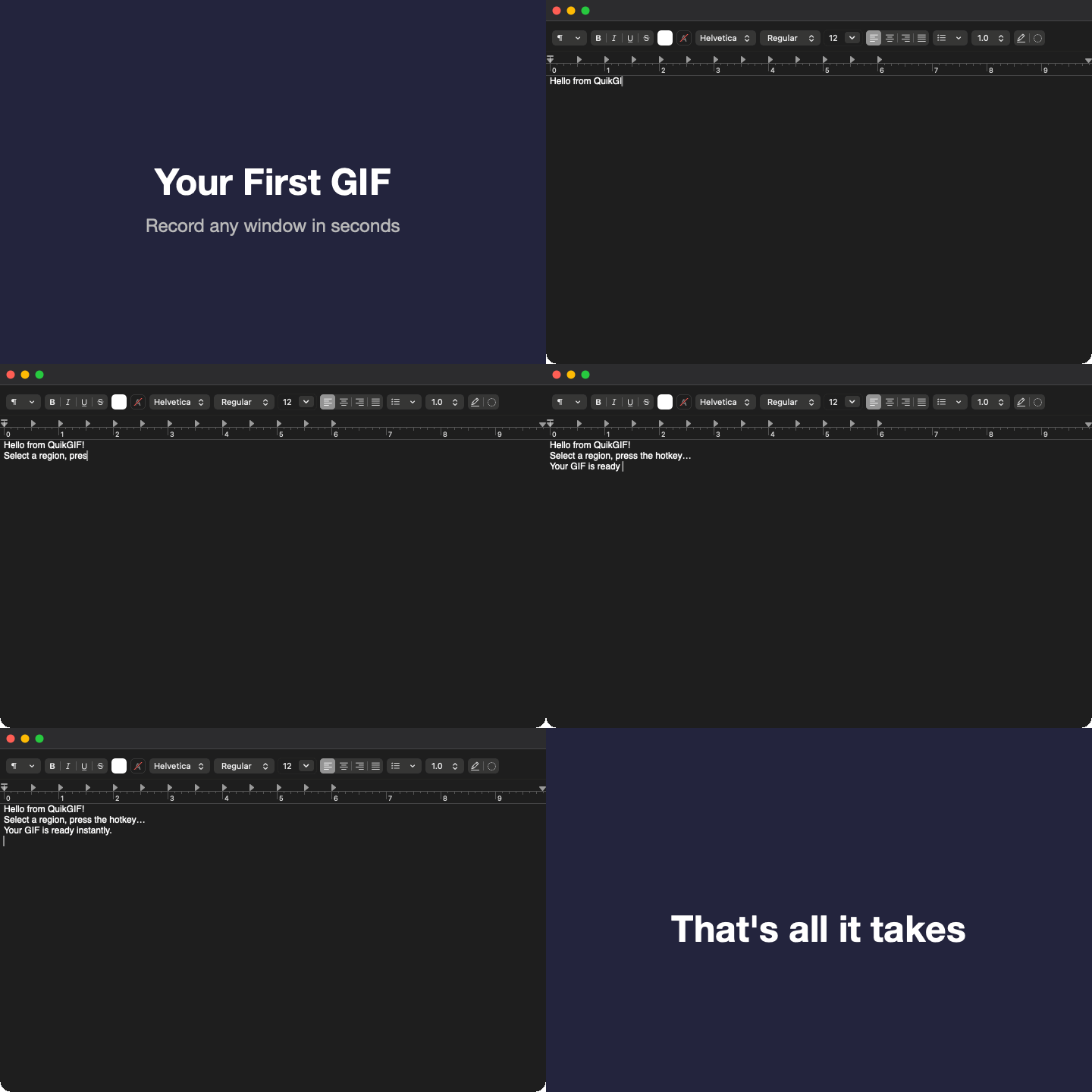
Your First GIF
Learn how to record a screen region as a GIF in seconds.

Save, Copy & Share
Save GIFs to disk, copy to clipboard, or share directly.
Advanced Features
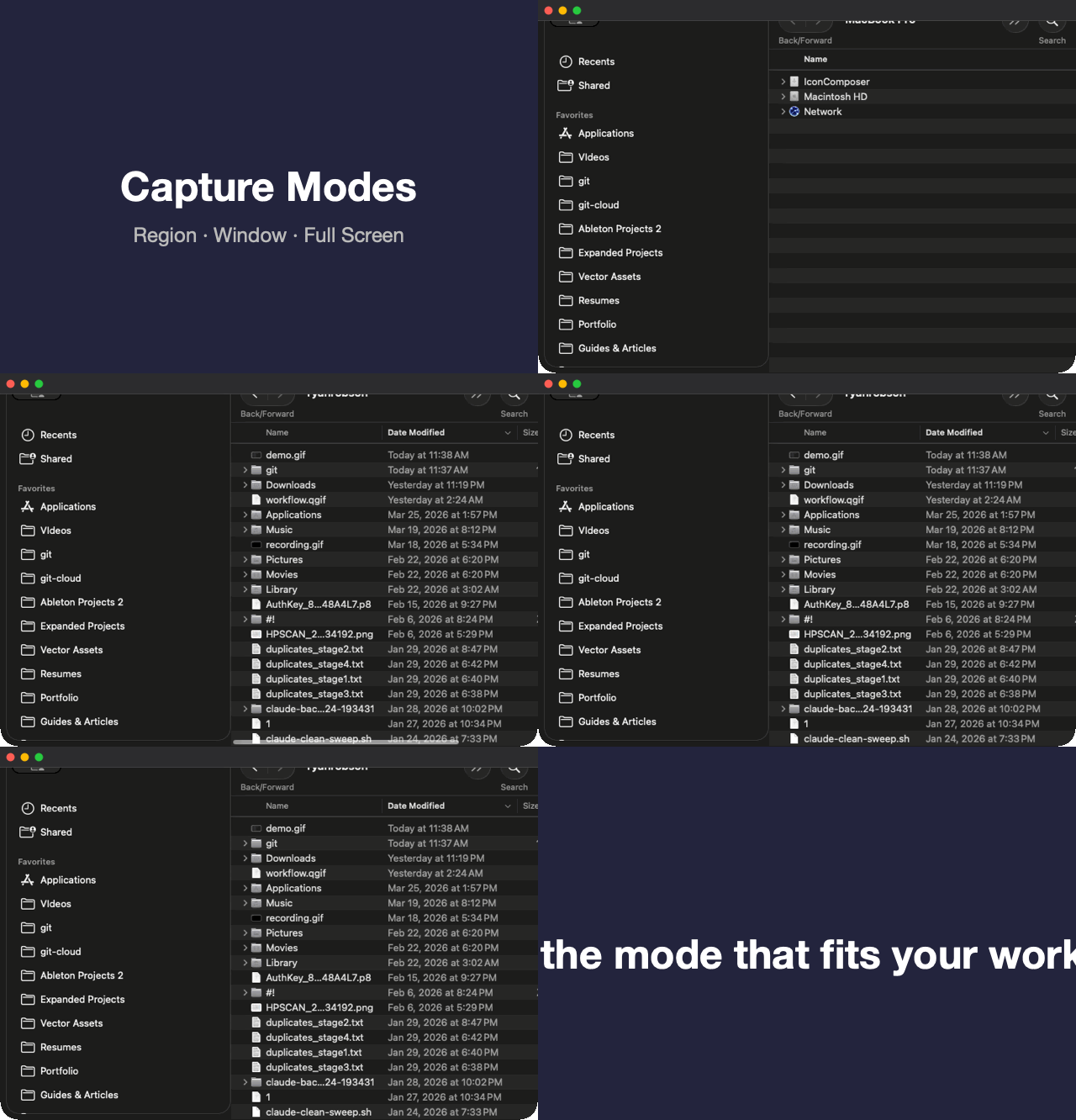
Full-Screen & Window Capture
Record entire screens or individual windows.
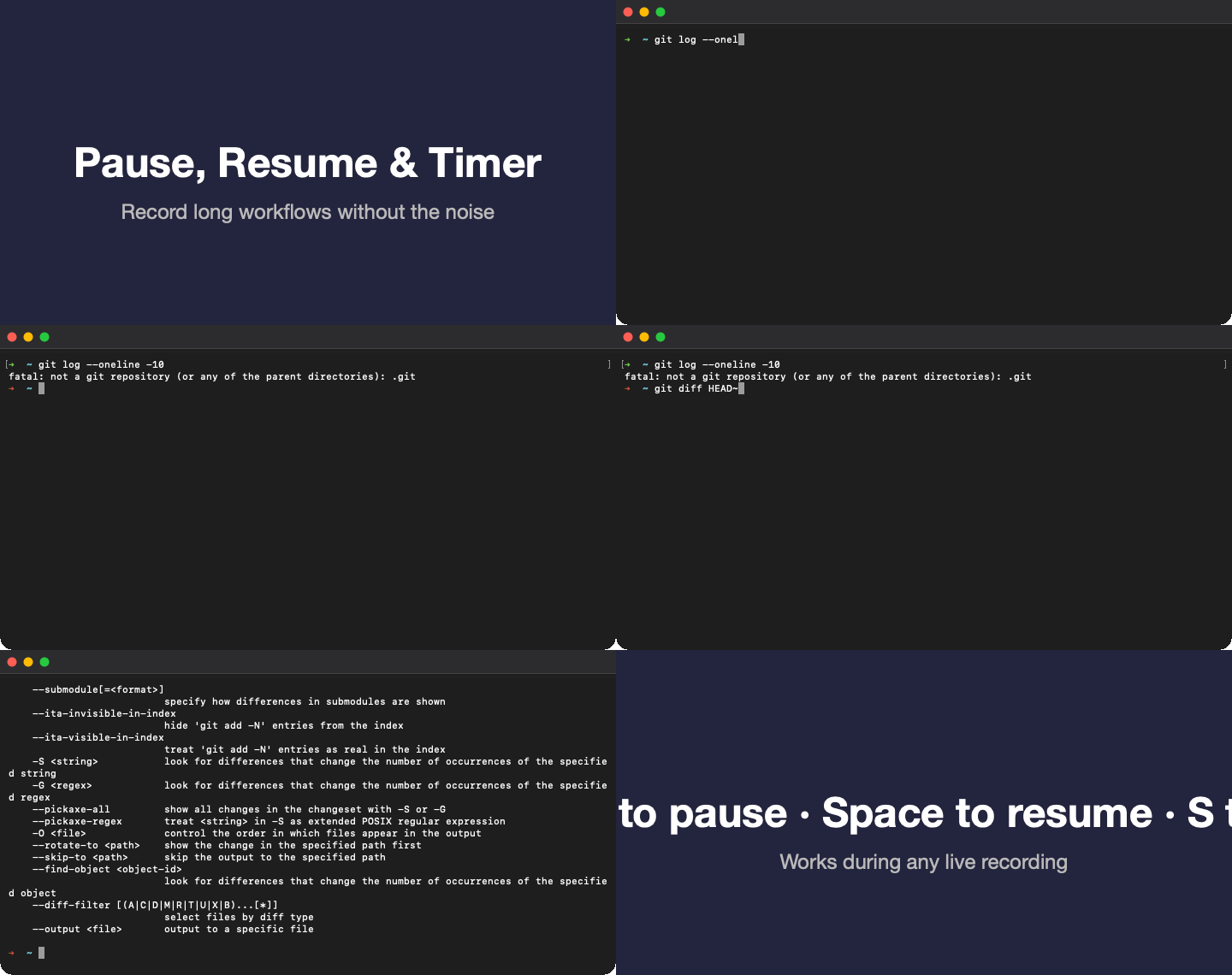
Pause, Resume & Timer
Control your recording with pause/resume and the timer display.
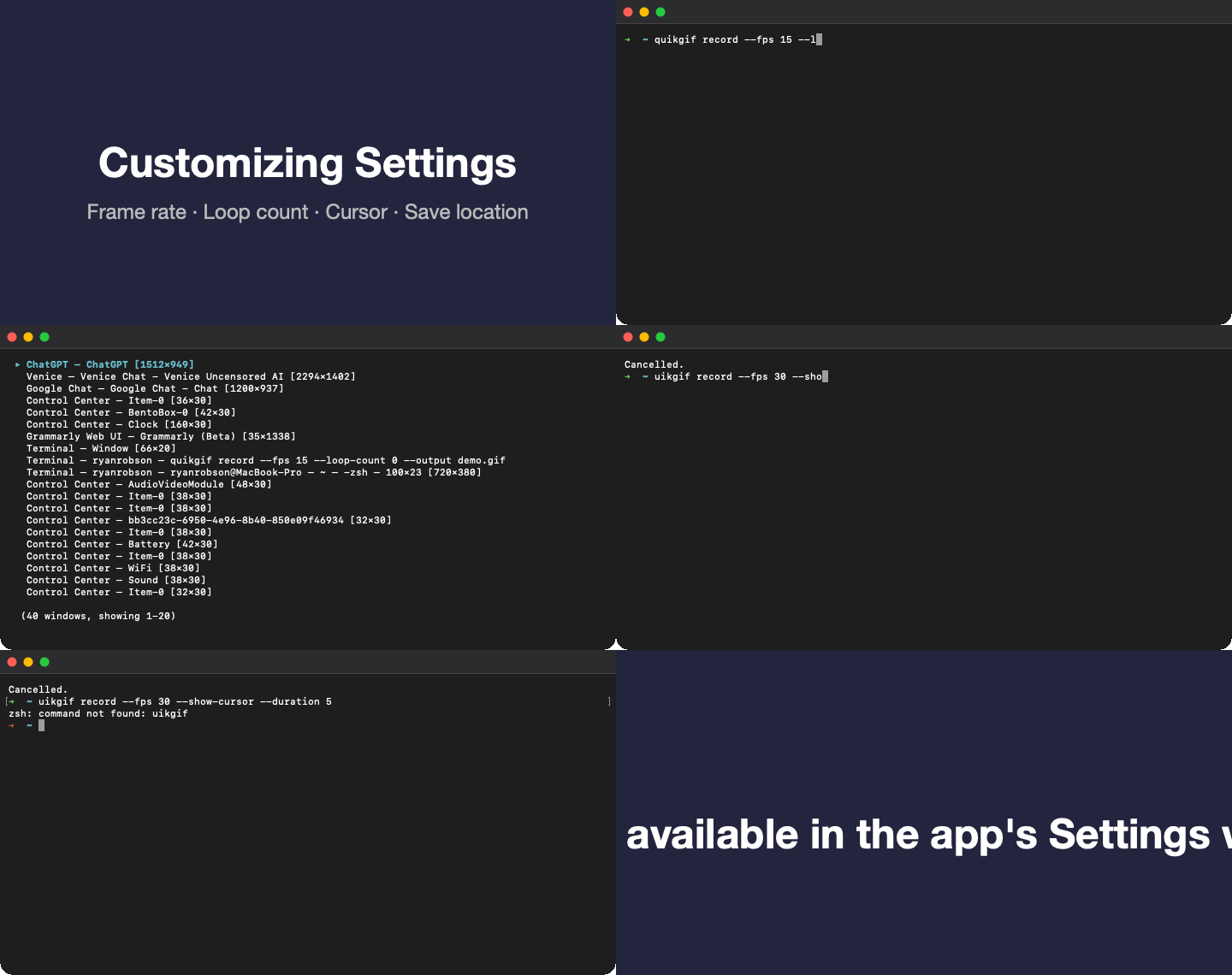
Customizing Settings
Adjust frame rate, loop count, cursor visibility, and more.
CLI & Scripting
Setting Up Permissions
Grant screen recording permission and get started.
Installing the CLI
Install the QuikGIF command-line tool with one curl command.
Recording from Terminal
Capture windows and regions from the command line.
Writing .qgif Scripts
Automate multi-step recordings with the scripting engine.