See it in action
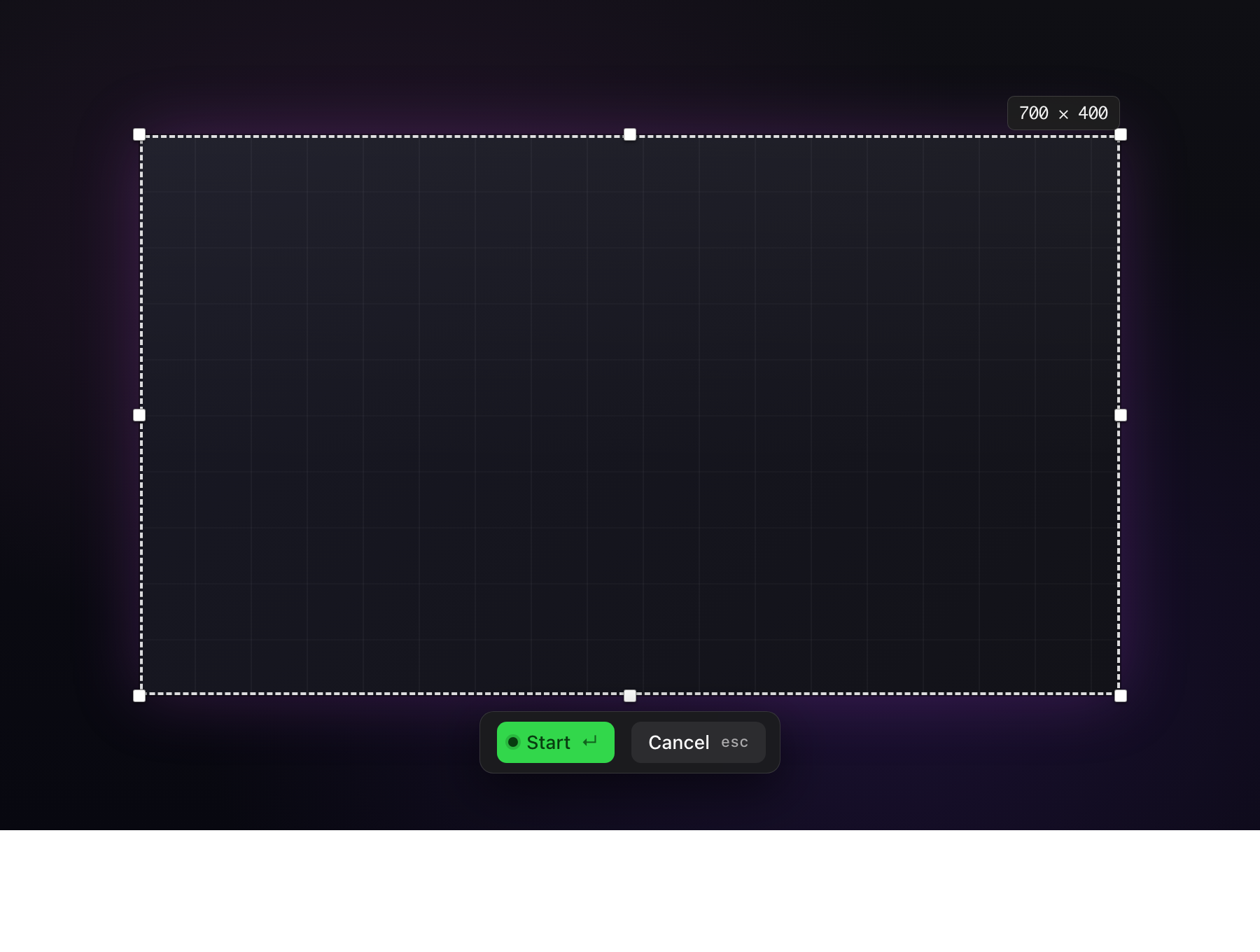
Drag to select a region
·
Space
for keyboard mode
·
ESC
to cancel
The fastest way to record your screen as a GIF. Always ready in your menubar.
Prefer a direct download? Get the notarized .zip — same app, no App Store account needed.
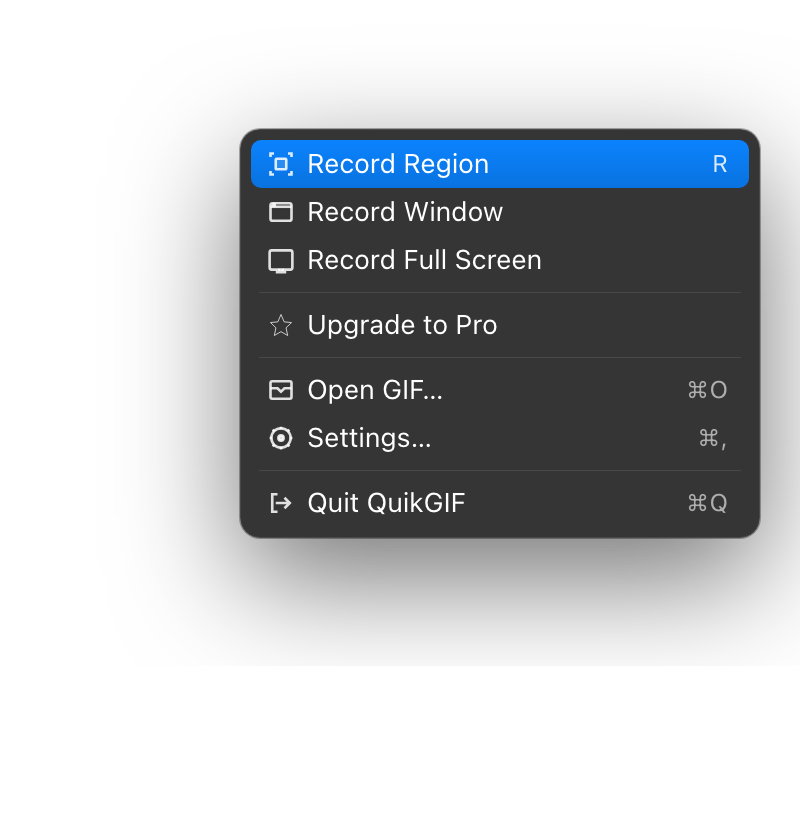
Starts in your menubar, always one click away. Open the window when you want your library and every capture mode in one place.
Start, pause, and stop recordings without touching your mouse.
Draw a rectangle around exactly what you want to capture.
Record your entire display with one click. No region selection needed.
Click any window to record it — follows the window even as it moves.
Pause mid-recording to skip parts you don't need in the final GIF.
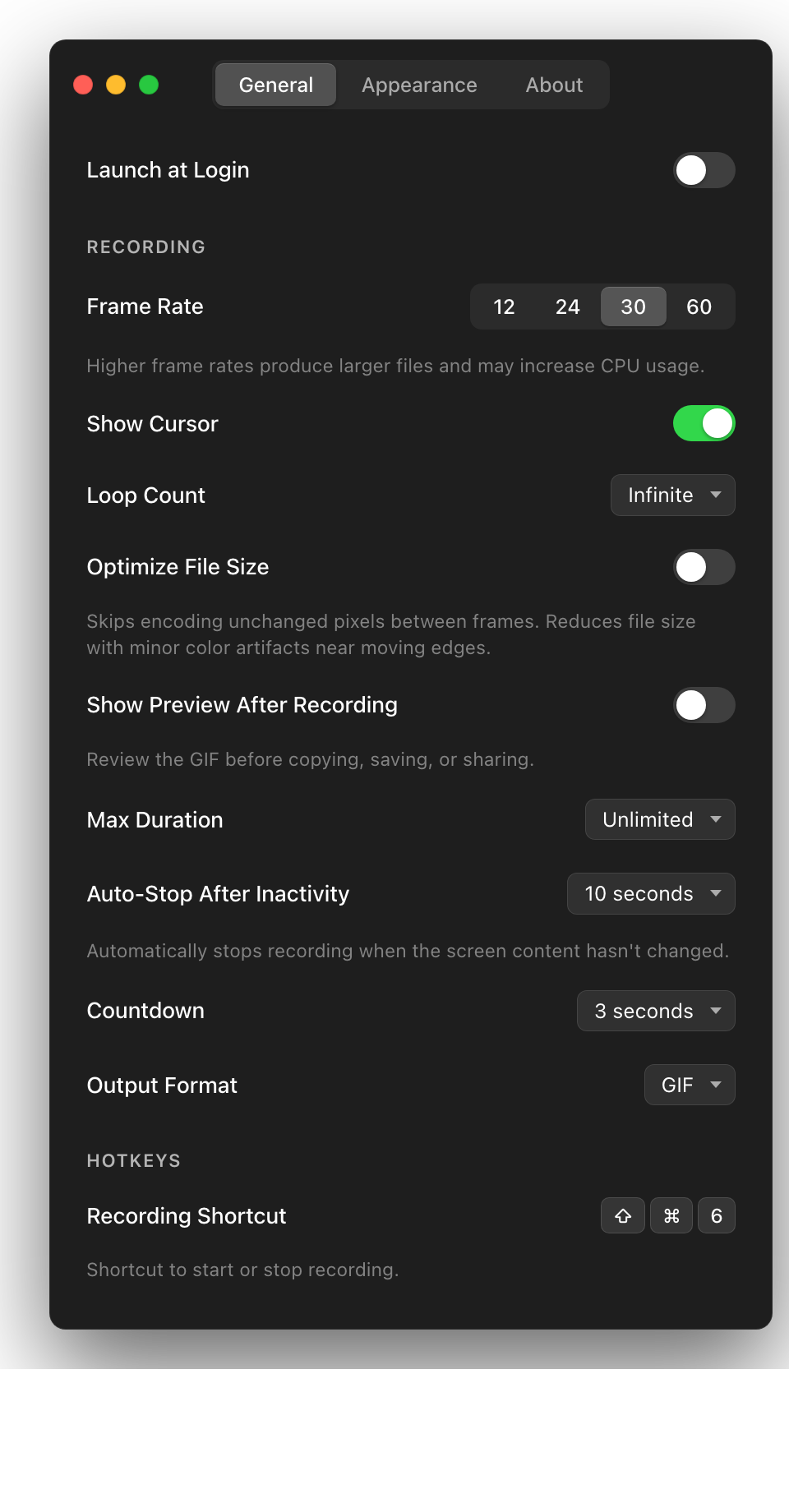
Frame rate, cursor visibility, loop count, max file size, and output format. Tune every recording to your needs.
Low, Balanced, and High bundle frame rate, lossless frame diffing, and a file-size target into one setting. Cancel encoding at any time with the hotkey or Cancel button.
Copy to clipboard, save to a folder, or share via the system share sheet. Your GIF is ready in seconds.
Native ARM64 binary built with Swift 6 and ScreenCaptureKit.
No time limits, no watermarks, no subscriptions. Free to start, Pro unlocks more.
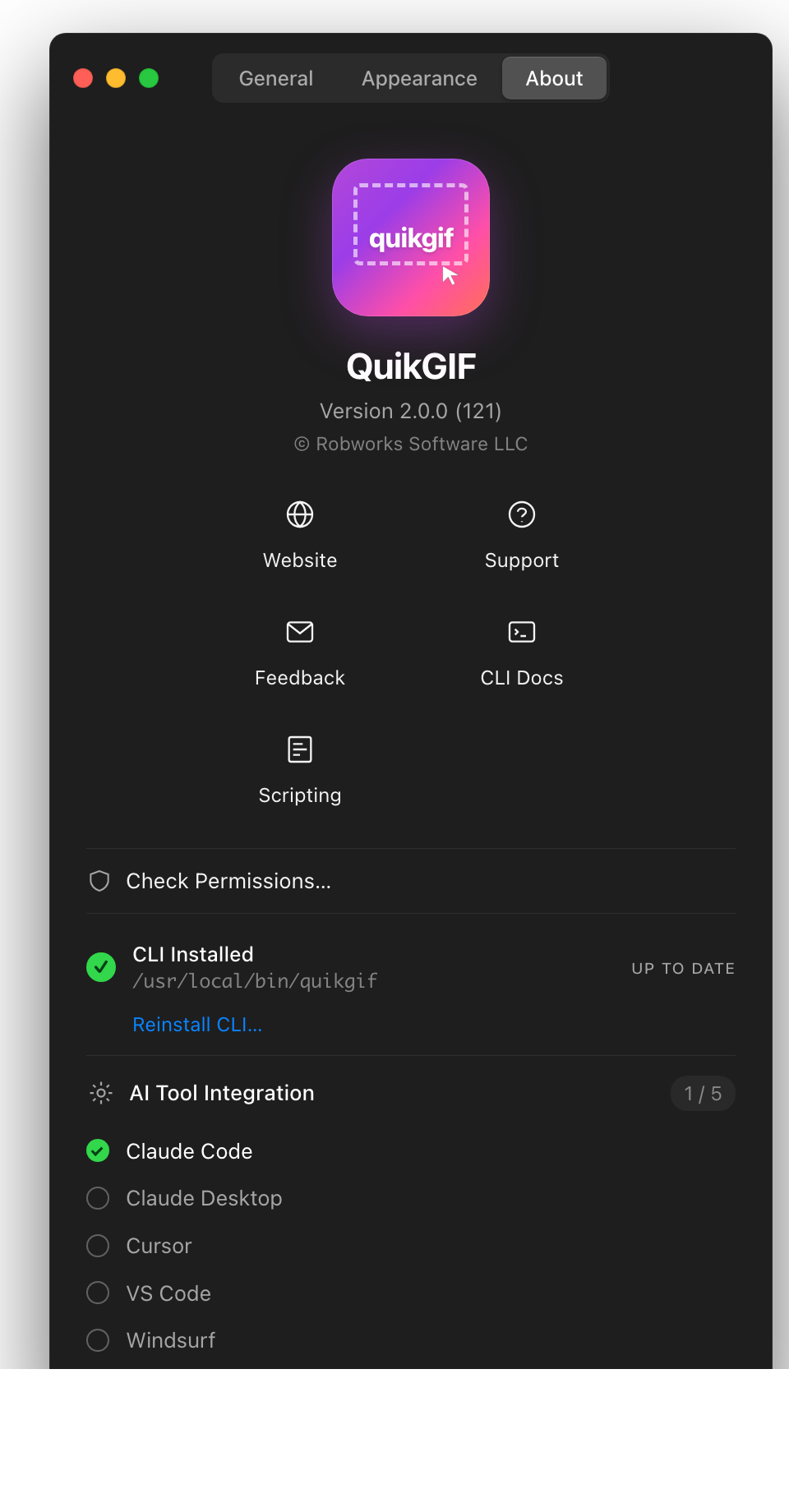
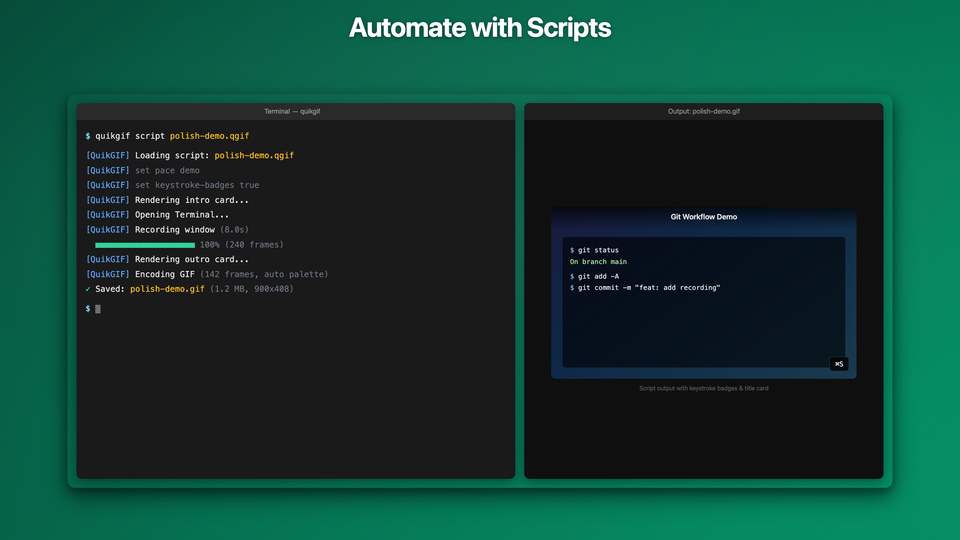
Record from the terminal, process GIFs, and automate demos with the .qgif scripting engine. 25 commands, visual effects, and shell integration.
Built-in MCP server with 20 tools. Record, capture, and automate GIFs from Claude, Cursor, or any MCP-compatible AI assistant.
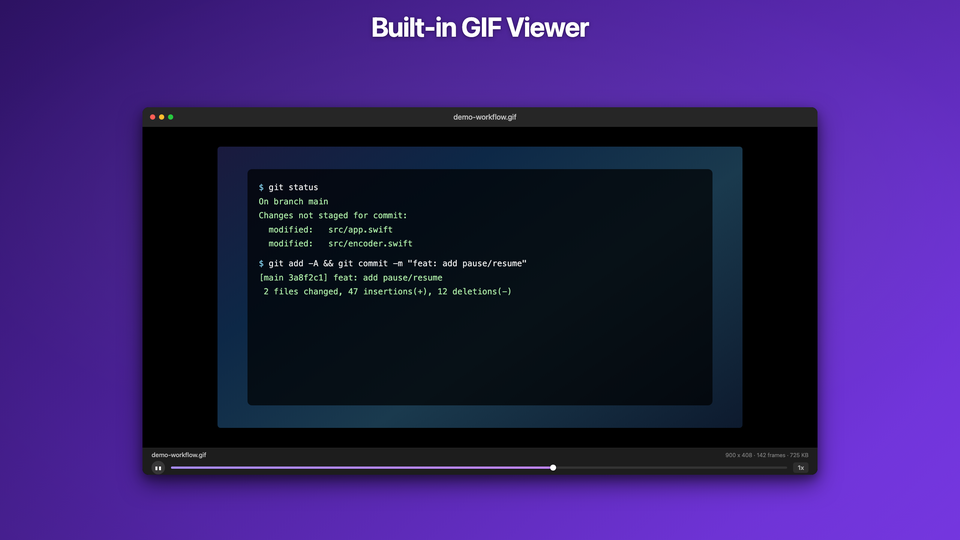
Inspect recordings with frame scrubbing, speed control, and arrow key navigation. Registers as a system-wide Open With handler.
Spotlight regions, keystroke badges, click indicators, and cursor smoothing. Make polished demo recordings without post-production.
Fix a take without re-recording. Trim with a frame-by-frame range slider, crop the output region, delete individual frames, and undo any of it.
Export beyond GIF when you need smaller files, true alpha, or H.264 video with audio.
Record a quick GIF of the bug in action and paste it directly into your GitHub issue or Jira ticket. Worth a thousand words of reproduction steps.
Show exactly how a feature works with a screen recording embedded in your docs, README, or wiki. GIFs autoplay everywhere — no video player needed.
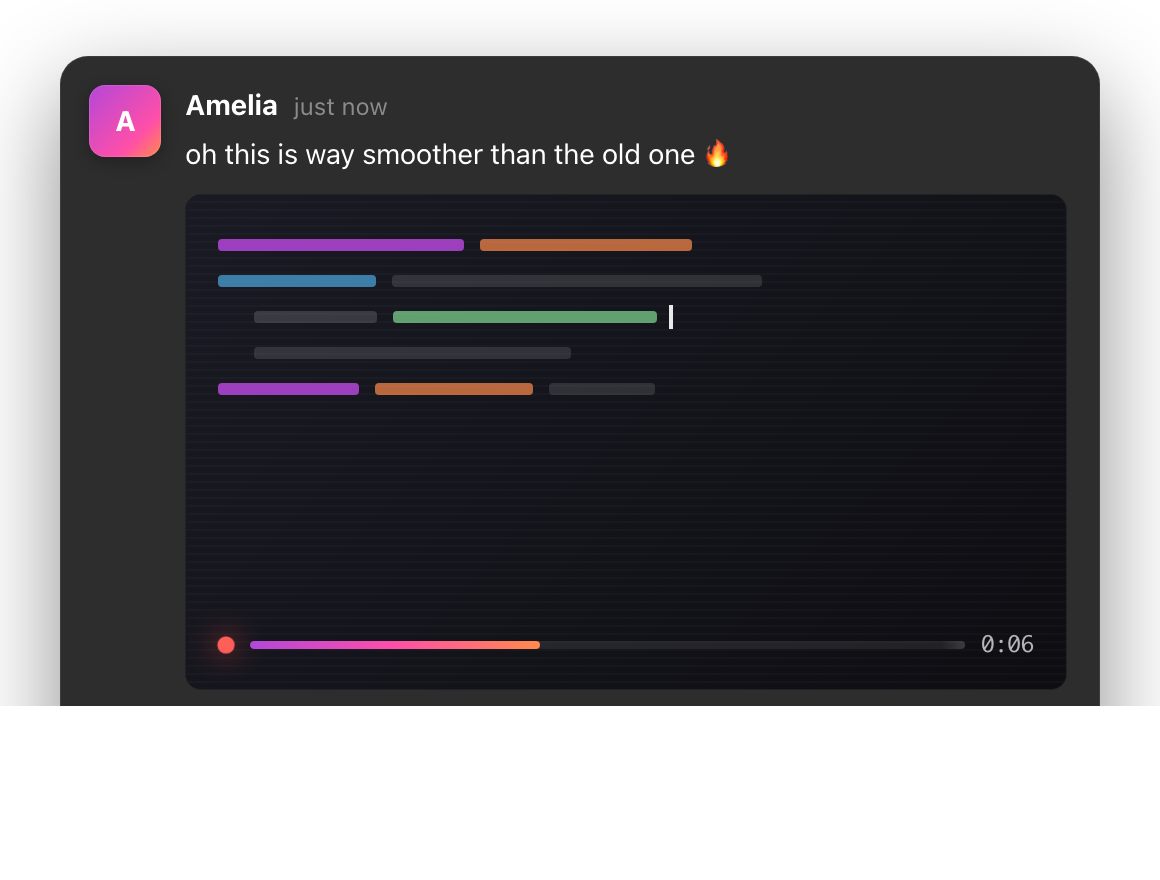
Drop a GIF into Slack to show a UI change, a demo, or a quick how-to. Inline playback makes it easy for everyone to see without clicking through.
Add a GIF to your pull request showing the before and after. Reviewers can see the visual change without checking out the branch.
QuikGIF ships a CLI for automation, a .qgif scripting engine for repeatable demos, and an MCP server that lets AI assistants record your screen.
Having an issue or have a question?
QuikGIF does not collect, store, or transmit any personal data.
All recordings are created and saved locally on your Mac. Optional crash reporting and usage statistics are local-only and disabled by default.
On first launch, macOS will prompt you to allow screen recording. Go to System Settings > Privacy & Security > Screen Recording and enable QuikGIF.
GIFs are saved to the location you choose in the save dialog that appears after each recording.
Yes. Click the QuikGIF menubar icon and open Preferences to customize your hotkey.
QuikGIF uses macOS ScreenCaptureKit to capture the screen region you select. This requires the Screen Recording permission to function.